The Rocket Hash window, panel by panel
Three screens, one sidebar, and a fair number of controls that are a single glyph — a #, a ⇄, two different ⊗ buttons that do different things. This names every one of them: what it does, where it sits, and which ones you will actually touch. Keep it open beside Rocket Hash the first time through and you will not need it again.
Every control here is either a word you can read or a glyph you cannot search for, and it is the glyphs that send people looking for a page like this one. There are seven of them, two are the same symbol doing different jobs in different places, and only one sits next to a word that explains it. Most of the rest of the screen is not a control at all — it is hexadecimal in a monospaced font, which is why the window looks busier than it is: the Files toolbar has four buttons and the Text panel has two.
This is the inventory, region by region: the sidebar, then each of the three tools in the order they appear, then every glyph collected in one table, then the shortest route from a question to its answer. If what you want is advice on which tool suits which job rather than a list of controls, your first ten minutes with a hash calculator is the page for that; this one is the map.
Every name below is the one the app puts on screen, so you can match them by eye. Text is free in Rocket Hash; Files and Verify are two independent one-time unlocks, which is the only reason a panel named here might not open for you.
The window and the sidebar
macOS 14 or later, Apple Silicon or Intel. The title bar holds the standard traffic lights and a sidebar-toggle control, which hides the sidebar and hands its width to whichever tool you are in — worth doing when you are reading 128-character digests rather than 64-character ones.
The sidebar itself has exactly three items, each with a small colored icon, and the selected one is highlighted:
- Text — a cyan icon marked Aa. Checksums of whatever you type.
- Files — a blue document. Checksums of things on disk, one file or a hundred thousand.
- Verify — a green check badge. A yes-or-no answer instead of a digest.
There is nothing else hiding in the window. No inspector to open, no second window, no inbox of past runs — each tool is one screen, and that is the whole of the interface. On macOS 26 the surfaces use Liquid Glass, with a refined material standing in for it on earlier systems; there are spring animations rather than abrupt state changes, and subtle haptics you will notice on a trackpad and not otherwise.
One structural thing worth knowing before you look for it: the app has no network code at all. No accounts, no telemetry, nothing syncing. It is sandboxed and hardened-runtime, written in Swift against Apple's own frameworks with no third-party dependencies, so the absence of a cloud panel is a design decision rather than an omission.
The Text panel
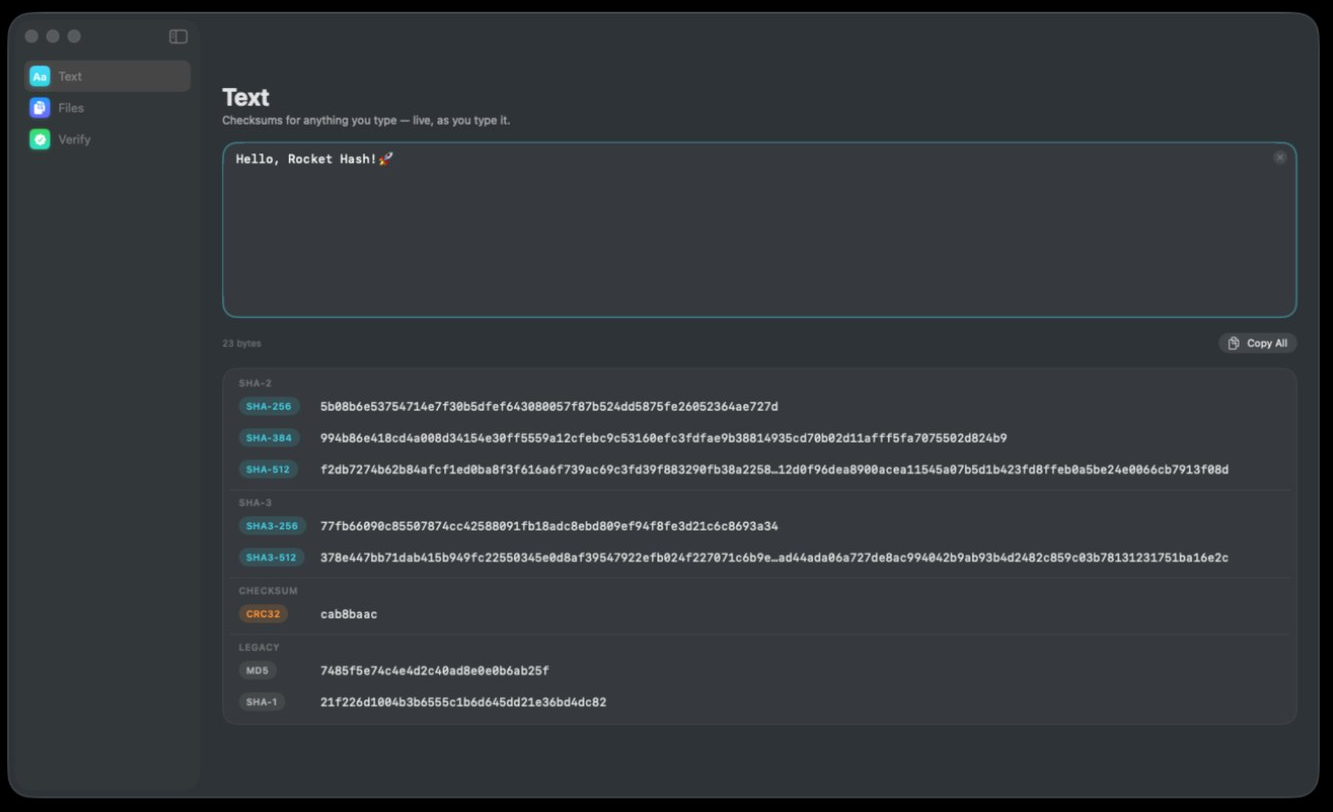
Heading Text, and underneath it the line Checksums for anything you type — live, as you type it. That is an accurate description: there is no hash button, because every keystroke recomputes all eight digests.
| Control | Where | What it does |
|---|---|---|
| The text field | Top of the panel | Takes typed or pasted input. Everything below it updates as you type. |
| ⊗ | Top-right corner of the field | Empties the field in one click, rather than selecting everything and deleting it. |
| Byte count | Below the field, left | How many bytes are being hashed — 23 bytes and so on. Not a control, but the most useful number on the screen. |
| Copy All | Below the field, right | Puts every algorithm's digest on the clipboard at once, labeled. |
| A digest row | Under its group heading | Click anywhere on it to copy that one digest. |
The digests sit under four group headings — SHA-2, SHA-3, CHECKSUM and LEGACY — and each row starts with a colored chip naming its algorithm: SHA-256, SHA-384, SHA-512, SHA3-256, SHA3-512, CRC32, MD5, SHA-1. Where a digest is too long for the row, its middle is elided with an ellipsis; that is presentation only, and clicking the row copies the digest rather than the shortened rendering of it.
Pay attention to that byte count. It counts bytes, not characters, because bytes are what a hash function consumes: an emoji moves it by four and an accented letter by two. It is also the quickest way to catch a stray space or an invisible character that arrived with a paste — why Unicode and emoji text hash differently covers the cases where two identical-looking strings are not the same bytes. On which form of copy to use where, one digest versus all eight is the short version.
The Files panel
Four controls in the toolbar, and then everything else is a list. Files and folders arrive by being dragged onto the window or through the add button; dropping a folder queues everything underneath it.
| Control | What it does |
|---|---|
| Algorithm, marked # | Chooses which digest a collapsed file row shows, and which one an exported manifest contains. All eight are computed either way, from one read of the file. |
| Add, marked + | Picks files or folders through an open panel, for when dragging is inconvenient. |
| Export / share | Writes the finished run out as a shasum-compatible manifest. |
| Reset | Clears the list so you can start on something else. |
Each file is one row, and the row has eight distinct parts. Left to right: the file's icon; its name in bold; the containing folder underneath the name, tilde-shortened — ~/Downloads; the size; the digest, middle-truncated; a copy button; a disclosure chevron; and a remove button.
The chevron is the part people miss. A collapsed row shows one digest — whichever algorithm the toolbar control is set to — and expanding the row shows all eight for that file at once. Expanding it computes nothing new: the file was read exactly once and every digest came out of that single pass, so the toolbar control decides what you are shown rather than what is worked out. The remove button takes a single file out of the list without touching the rest.
Along the bottom is a status bar with a summary on the left, in the shape of 1 file · 2 kB, and progress on the right, as ✓ 1 hashed. While a run is moving, this is also where the throughput and the estimated time remaining live. Throughput is a measurement and the estimate is a prediction, which matters more than it sounds: reading the speed and the time remaining explains when to believe the second number.
Two behaviors in this panel are not visible as controls but are worth knowing about. A long run can be paused mid-file and resumed from the exact byte it stopped at rather than starting that file again — see pausing and resuming a long hash — and a run can be stopped gracefully rather than killed in the middle of a read. Memory stays flat at roughly 16 MB whether the file in front of it is 4 MB or 400 GB, because the bytes stream through rather than accumulating, which is also why a queue of more than a hundred thousand files is unremarkable.
The Verify panel
Heading Verify, subtitle Prove a file is exactly what it claims to be. A Reset button in the toolbar, and a segmented control with two modes that change what the rest of the panel is.
Against a Checksum is the common one: a drop well for the file and a field for the value somebody published. You do not have to declare the algorithm — it is worked out from the length of what you paste — and you do not have to trim a line out of a SHA256SUMS file down to just the hex first. Checking a file against a published checksum is that route, step by step.
File vs. File puts two drop wells side by side with a swap control between them, marked ⇄. Each well shows the file's icon, its name and its size once it holds something, plus a Replace… link for changing your mind without clearing the whole panel. The swap exchanges the two sides, which matters less for the verdict — identical is a symmetric claim — than for keeping your head straight about which copy is the original. Comparing two files covers when this mode beats producing two digests and reading them.
The verdict appears below, as a green seal and a sentence, with a second line naming the algorithm underneath — for example Files are identical. over Verified byte for byte with SHA-256. There is deliberately no partial result and no amber state, because there is no such thing as nearly matching: flipping one bit of a file flips about half the bits of its digest, and with them almost every character you can see.
Every glyph in one place
Single-character controls are quick to use and impossible to search for, so here they all are. Note that ⊗ appears twice and means something different each time, according to where it is.
| Glyph | Where | What it does |
|---|---|---|
| Aa | Sidebar, cyan | The Text tool. |
| # | Files toolbar | The Algorithm control — which digest a collapsed row shows and an export contains. |
| + | Files toolbar | Add files or folders through an open panel. |
| ⊗ | Corner of the text field | Empty the field. |
| ⊗ | End of a file row | Remove that one file from the list. |
| Chevron | End of a file row | Expand that file to every algorithm at once. |
| ⇄ | Between the two wells in File vs. File | Swap the two files being compared. |
The shortest route to each answer
Read this column-first: find the thing you want on the left, and the right-hand side is the fewest moves that get it.
| What you want | The quickest route |
|---|---|
| A digest of something you can type | Text → type it → click the row you need |
| All eight digests of a string | Text → type it → Copy All |
| One digest of a file | Files → drag it in → the copy button on the row |
| All eight digests of one file | Files → drag it in → the chevron |
| A digest for every file in a folder | Files → drag the folder in → watch the status bar |
| A list you can keep or send | Files → finish the run → Export |
| Whether a file matches a published checksum | Verify → Against a Checksum → drop the file, paste the value |
| Whether two files are identical | Verify → File vs. File → fill both wells |
The export route is the one that repays learning properly, because a manifest is readable by command-line tools on any operating system and turns today's run into something you can check against next year — exporting a checksum manifest covers the format.
Troubleshooting
The sidebar has disappeared
The sidebar-toggle control in the title bar hides and shows it, and it is easy to hit by accident while reaching for a traffic light. Click it again and the three tools come back; nothing about the current run is affected either way.
A digest has an ellipsis in the middle of it
That is the row being too narrow for the value, and it happens most with the 128-character digests from SHA-512 and SHA3-512. Nothing is lost: copying the row gives you the whole thing rather than the shortened version of it.
I only see one digest for my file
A collapsed file row shows one digest: the one for the algorithm currently selected in the toolbar. The other seven have already been computed — the chevron at the far end of the row expands it to all eight, and because they all came out of the same single read of the file, there is no penalty for looking.
I dropped a file on the Text screen and nothing happened
Only two of the three panels take a drop. The Files list accepts files and folders, each well in Verify accepts one file, and the Text field accepts characters — so a file dragged onto it has nowhere to land. Check which of the three is selected in the sidebar before you blame the drag.
The algorithm I need is not in the list
Eight is the whole set: SHA-256, SHA-384, SHA-512, SHA3-256, SHA3-512, CRC32, MD5 and SHA-1. SHA-224, SHA-512/256, BLAKE2 and BLAKE3 are not there and no control adds them, so a publisher who listed one of those has given you a value this window cannot produce. Check the length against the eight before you conclude that, though: an unlabeled 64-character digest is far more often a SHA3-256, which is in the list, than a SHA-512/256, which is not.
Frequently asked questions
What do the three icons in the sidebar mean?
They are the three tools. A cyan Aa is Text, which hashes whatever you type, live. A blue document is Files, which hashes files and folders on disk and exports the results. A green check badge is Verify, which compares a file against a published checksum or against another file and answers with a verdict rather than a digest.
What does the # button in the toolbar do?
It is the Algorithm control in the Files tool, and it decides which of the eight digests a collapsed file row shows and which one an exported manifest contains — SHA-256, SHA-384, SHA-512, SHA3-256, SHA3-512, CRC32, MD5 or SHA-1. It does not decide what gets computed: every file is read exactly once and all eight digests come out of that single pass, whatever the control is set to.
Why is my hash shown with dots in the middle?
Because the full value is wider than the row. The middle is elided for display only, and clicking the row copies the complete digest — so the ellipsis never ends up on your clipboard. Hiding the sidebar gives the rows more width if you would rather read the whole value on screen.
How do I see every algorithm for one file?
Expand the file's row with the disclosure chevron at the end of it. That shows all eight digests for that single file. It costs nothing in time, because the file was streamed once and every digest came out of that one read.
What does the status bar at the bottom show?
A summary of the queue on the left — the number of files and their total size, such as 1 file · 2 kB — and progress on the right, as a count of what has been hashed. While a run is in progress it also carries the live throughput and an estimate of the time remaining.
Which parts of the app need a purchase?
Text hashing is free. The Files & Folders tool and the Verification tool are two separate one-time unlocks, bought independently of each other, with no subscription involved. You can use the free Text tool indefinitely without unlocking either.
Does the app work without an internet connection?
Completely, because it has no network code of any kind — no accounts, no telemetry, nothing to sync. Hashing is arithmetic over bytes that are already on your disk, so there is nothing for it to call out to, and a file you would rather not hand to a stranger's server never leaves the machine.