How to check a file’s checksum on Mac
You have a file and a string of hexadecimal somebody published next to it, and you need to know whether the two agree. You can do this with Rocket Hash, on your own machine, in about fifteen seconds — and this page covers the whole job, including what to do when the two do not agree.
Somebody has handed you a checksum. It is on the download page under the installer, in the release notes on GitHub, in an email from a colleague, or in a file called SHA256SUMS sitting next to the thing you actually wanted. It is sixty-four characters of hexadecimal and it means nothing to you on its own.
What it is for is simple: it is a fingerprint of the file's bytes. If your copy produces the same fingerprint, your copy is byte-for-byte the file the publisher meant to give you. If it produces a different one, something is wrong — and it is worth knowing what before you run the installer.
This guide covers computing a checksum for a file on macOS, comparing it with a published one, and working out what a mismatch is telling you. If you want the background first, what a checksum actually proves is a five-minute read that makes the rest of this obvious.
Drop the file into the Verify tool, paste the published checksum, and read the sentence underneath. Everything else on this page is context for when that sentence is not the one you wanted.
What you need before you start
Two things, and the second one matters more than people expect.
- The file. Wherever it landed —
~/Downloadsis fine, an external disk is fine, a network share works but will be slower. - The checksum, from a source you trust. This is the part that does the actual work. A checksum published on the same page as the download, over the same connection, by whoever served you the file, only proves the file survived the trip. It cannot tell you the page itself was honest. More on that in detecting tampering.
You also need to know which algorithm the checksum uses, although in practice you rarely have to work it out yourself — the length gives it away, and the Verify tool reads the length for you. If you want to do it by eye, the table of digest lengths settles it in one glance.
Check a file against a published checksum
-
Open the Verify tool
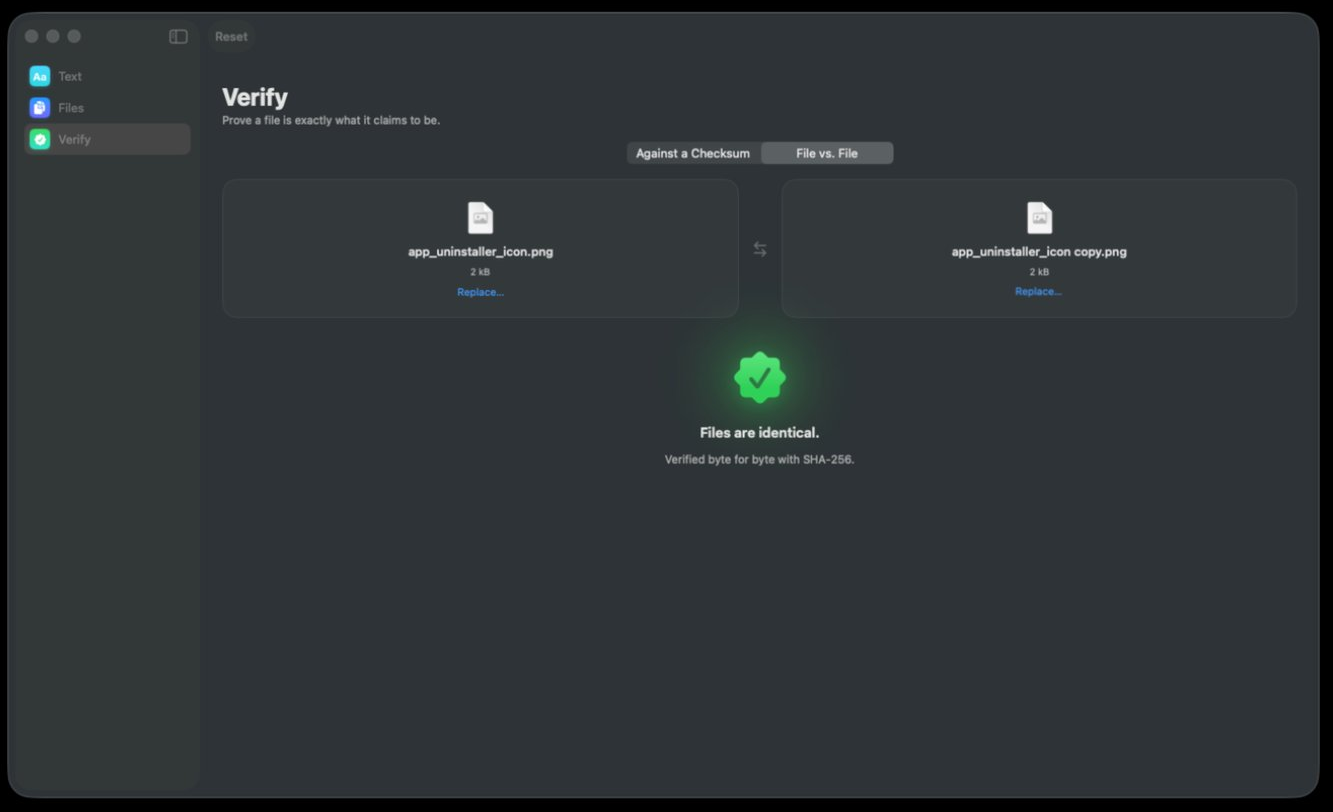
Click Verify in the sidebar — the green badge icon, under Text and Files. The heading reads Verify and the line under it reads Prove a file is exactly what it claims to be, which is a fair description of the next thirty seconds.
-
Choose “Against a Checksum”
The segmented control at the top offers two modes: Against a Checksum and File vs. File. You want the first. The second is for when you have two copies of something and no published value at all — that route is covered in comparing two files.
-
Add the file
Drag it from the Finder into the drop well, or use the Replace… link to pick it with an open panel. The well shows you the file's icon, its name and its size once it has taken it — worth a glance, because picking up
ubuntu-24.04.iso.partinstead ofubuntu-24.04.isois a mistake that produces a genuine, alarming, entirely meaningless mismatch. -
Paste the published checksum
Copy the hexadecimal string from wherever it was published and paste it in. You do not need to trim it down to just the hex first: a whole line out of a
SHA256SUMSfile, complete with the two spaces and the filename after it, is understood. Neither is the algorithm something you have to declare — it is worked out from how many characters you pasted. -
Read the verdict
The file streams past once and the answer appears underneath: a green seal and a sentence when the two agree, and an unambiguous statement that they do not when they disagree. There is no traffic-light amber in between, because there is no such thing as nearly matching — flipping a single bit of the file flips about half the bits of the digest, which in hexadecimal changes almost every character of it.
If you only need the digest
Sometimes there is nothing to compare against yet — you are producing the checksum, not checking one. Somebody has asked you for the SHA-256 of a file you are about to send, or you want to record what a file looked like today so you can tell whether it has changed in six months.
For that, use Files rather than Verify. Drag the file in and it appears as a row: icon, name, the folder it came from underneath, its size, and the digest. The disclosure chevron at the end of the row opens every algorithm for that file, and the copy button next to it puts the digest on the clipboard without you having to select sixty-four characters by hand.
The file is read exactly once, and all eight digests come out of that single pass. That is worth knowing when the file is a 60 GB disk image: expanding the row to all eight algorithms does not mean eight passes over the disk, and it does not cost you eight times the wait. Hashing a very large file goes into what that actually means for a long job.
How long it takes
Almost always less than you expect, and almost always limited by the disk rather than by the arithmetic. SHA-256 runs at roughly 2 GB/s on Apple Silicon, which is faster than most drives can supply data, so the honest answer to “how long will this take” is usually “as long as it takes to read the file once”.
| File | Internal SSD | USB 3 drive | Network share |
|---|---|---|---|
| A 40 MB installer | Instant | Under a second | A second or two |
| A 5 GB ISO | A few seconds | Under a minute | Several minutes |
| A 60 GB disk image | Under a minute | Ten minutes or so | Go and have lunch |
Those are representative rather than promises — a five-year-old spinning drive and a Thunderbolt array are not the same machine. The live throughput figure on screen tells you which one you have; why hashing is slow covers what to do when the number is disappointing.
When the checksum does not match
Resist the urge to conclude you have been attacked. In order of how often each one actually turns out to be the cause:
| Cause | How to tell |
|---|---|
| The download did not finish | The file size does not match the one on the download page |
| You hashed the wrong file | A .part, a (1) copy, or last month's version in the same folder |
| The checksum is for a different build | Different version number, architecture, or Intel versus Apple Silicon |
| You compared different algorithms | The published value is a different length from the one you produced |
| The copy is stale | Part of the hex was cut off, or a space crept into the middle of it |
| The file was modified after publication | Everything above has been ruled out |
A mismatch you cannot explain is a reason to download the file again from the source, not a reason to shrug. Re-downloading costs you a few minutes; the alternative can cost considerably more.
What to do when a checksum does not match works through each of these in turn, with the two-minute route that eliminates most of them at once.
When the checksum arrives as a whole file
Often the publisher does not give you one string. They give you a text file — SHA256SUMS, CHECKSUMS, sha256sum.txt — covering every file in the release. Open it and what you are looking at is one line per file: a digest, two spaces, a filename.
0f1e2d3c4b5a69788796a5b4c3d2e1f00f1e2d3c4b5a69788796a5b4c3d2e1f0  ubuntu-24.04-live-server-amd64.iso
f0e1d2c3b4a59687788796a5b4c3d2e1f0f0e1d2c3b4a59687788796a5b4c3d2  ubuntu-24.04-desktop-amd64.iso
The hexadecimal above is illustrative — it shows the shape, not any real release. The values that matter are the ones on the publisher’s own page, and those are what you paste into Verify.
Nothing about that changes the five steps above. You downloaded one of those images and not both, so one line concerns you: select it whole — digest, separator, filename and all — and paste it into Against a Checksum with your download in the drop well. The digest at the front is the part that gets compared, and its length is what tells the app which algorithm to run.
The part worth slowing down for is choosing the line. Your copy's own name does not have to match the one written there — a browser that appended (1) renamed the file and changed none of its bytes — but the line you pick decides the answer, and a release directory routinely holds a desktop image, a server image and a build per architecture, each with a digest of its own. The drop well names the file it is holding, so read that name against the filename on the line before you trust the verdict; a failure that is really two different products then stops looking like a corrupted download. How to read a SHA256SUMS file takes a single line apart field by field, including the asterisk some publishers put in front of the filename.
One line at a time is the right amount of effort for one download. For a whole release, or a folder you mean to re-check in a year, hash it in Files and use the export button to write your own list out in this same two-column format, then set the two lists side by side — checking files against a manifest is that job end to end.
Whether the tool itself is honest
A verdict is worth exactly as much as the thing producing it, and you do not have to take this one on trust. A hash function has no settings and no tolerances: SHA-256 is a published specification with published answers, so an implementation is either right for every input or demonstrably wrong on a known one. The three letters abc hash to ba7816bf8f01cfea414140de5dae2223b00361a396177a9cb410ff61f20015ad, and an empty input to e3b0c44298fc1c149afbf4c8996fb92427ae41e4649b934ca495991b7852b855. NIST publishes both for this exact purpose.
Checking that takes about twenty seconds and costs nothing. Type abc into the app's free Text tool and read the SHA-256 row, then type the same three letters into the SHA-256 generator in a browser tab here and read that. Those pages hash the text you type — a file is what Files and Verify are for — but it is the same arithmetic your disk image goes through, and a tool that agrees with NIST on a known vector is not quietly wrong about your ISO. Checking that a hashing tool is telling the truth runs through the rest of the vectors.
That settles the arithmetic, which is the easy half. It says nothing at all about the value you are comparing against, and that is where the real doubt usually belongs — a digest computed perfectly against a checksum somebody published on a page they do not control proves the download was clean and nothing more.
Troubleshooting
The two strings look the same but it says no match
Something invisible came along with the paste. A trailing space, a newline, a non-breaking space where a normal one belongs, or a zero-width character picked up from a web page. Paste it again into a plain text field first and look at the character count, or simply retype the last eight characters by hand — if that fixes it, the paste was carrying passengers.
The published checksum is a different length from mine
Then it is a different algorithm, and the comparison was never going to work. A 32-character value is MD5, 40 is SHA-1, 64 is SHA-256 or SHA3-256, 128 is SHA-512 or SHA3-512. Produce the matching one rather than the one you happen to have.
The file is still downloading
Then whatever you compute describes a file that no longer exists by the time you read the answer. Wait for the download to finish and the browser to rename the file off its temporary name. Hashing a file that is still being written covers the general case, including log files and open databases.
macOS will not let the app read the folder
Desktop, Documents, Downloads and removable volumes each sit behind their own permission on a modern Mac, granted the first time something asks. Dragging a file in from the Finder grants access to that file directly, which is the quickest way past it; permission problems covers the System Settings route for whole folders.
I do not know whether to trust the checksum itself
This is the right question to be asking, and it is a different question from the one this page answers. A checksum served from the same place as the file proves the transfer was clean, nothing more. What raises it to proof of origin is a signature — which is why Linux distributions publish a SHA256SUMS file and a SHA256SUMS.gpg beside it. Verifying a Linux ISO shows how the two fit together.
Frequently asked questions
Does checking a checksum upload my file anywhere?
No. The whole calculation happens on your Mac — there is no network call to make, no account to sign in to, and nothing for the app to send. That is the reason to do this in a local app rather than in a web form: a file worth verifying is often a file you would rather not hand to a stranger's server.
Which algorithm should I use to check a download?
Whichever one the publisher used, because you are comparing against their value and the two have to be the same function. In practice that is SHA-256 the overwhelming majority of the time. When you are producing a checksum rather than checking one, SHA-256 is also the right default — see which hash algorithm to use.
Is a checksum the same thing as a digital signature?
No, and the difference matters. A checksum proves the bytes are unchanged; it says nothing about who produced them, because anyone who changes a file can publish a matching checksum for the new version. A signature binds the checksum to a key, which is what turns “this file is intact” into “this file came from them”.
How long is a SHA-256 checksum supposed to be?
64 hexadecimal characters — 256 bits, 32 bytes, the same thing said three ways. If the value you were given is longer or shorter, it is a different algorithm. The full table is in how long a SHA-256 hash is.
Can I check a whole folder of files at once?
Yes. Drop a folder into the Files tool and every file underneath it is queued and streamed in turn, with a status bar counting what is done. Exporting the result writes a manifest in the standard two-column format — one digest and one filename per line — which is how you check the same folder again later.
Does hashing a file change it in any way?
No. Hashing is a read. Nothing is written, the modification date is untouched, and nothing moves — which is exactly why it is safe to point at a master copy, an archive, or somebody else's disk.