How to compare two files on Mac
Two files, and a question with only two answers: are these the same bytes, or not? Names, dates and sizes all agree far more often than they should, so Rocket Hash ignores them and compares the contents instead — two files side by side, across folders or across drives, and a sentence at the end that does not need interpreting.
There are two copies of the same 9 GB video — one on the desktop, one on the drive you copied it to last night — and you would like to delete the first. Or there are two files called contract-final.pdf in two different folders, or a file you were sent twice by two different people, or an archive you restored from a backup and the original it was supposed to be a backup of.
The question is the same every time and it has exactly two answers. Put one file in each side of File vs. File in the Verify tool, and the answer comes back as a sentence: the two are either byte-for-byte identical or they are not. Names do not enter into it, so it works just as well on two files with the same name in different folders as on two differently named files sitting next to each other.
What this page does not cover is comparing against a checksum somebody published, which is a different job with a different tool — checking a file against a published checksum has that. Here there is no published value at all. There are just two files, and nobody has told you anything about either of them.
Click Verify, choose File vs. File, and drop one file into each well. The rest of this page is about the cases where the two files are not both in front of you, and about why two files that look the same so often are not.
What the Finder can and cannot tell you
Get Info gives you three fields, and all three mislead.
The name is just a label; IMG_4410.jpg and beach.jpg are routinely the same bytes, and two files called report.docx routinely are not. The modification date describes the file’s history rather than its contents, and copying, syncing, restoring and unzipping all rewrite it — two identical files frequently have dates weeks apart, and two different files can share one to the second. The size is the most convincing and the most dangerous, because files that came from the same source usually match there exactly. A single flipped bit in the middle of a 9 GB video leaves the size untouched.
There is nothing in the Finder that compares the contents of two files. A digest does, by reducing each file to a short fixed-length fingerprint of every byte it contains: same fingerprint, same bytes. That is also how you find duplicates in bulk rather than in pairs, which finding duplicate files by hash covers.
Compare two files side by side
-
Choose File vs. File
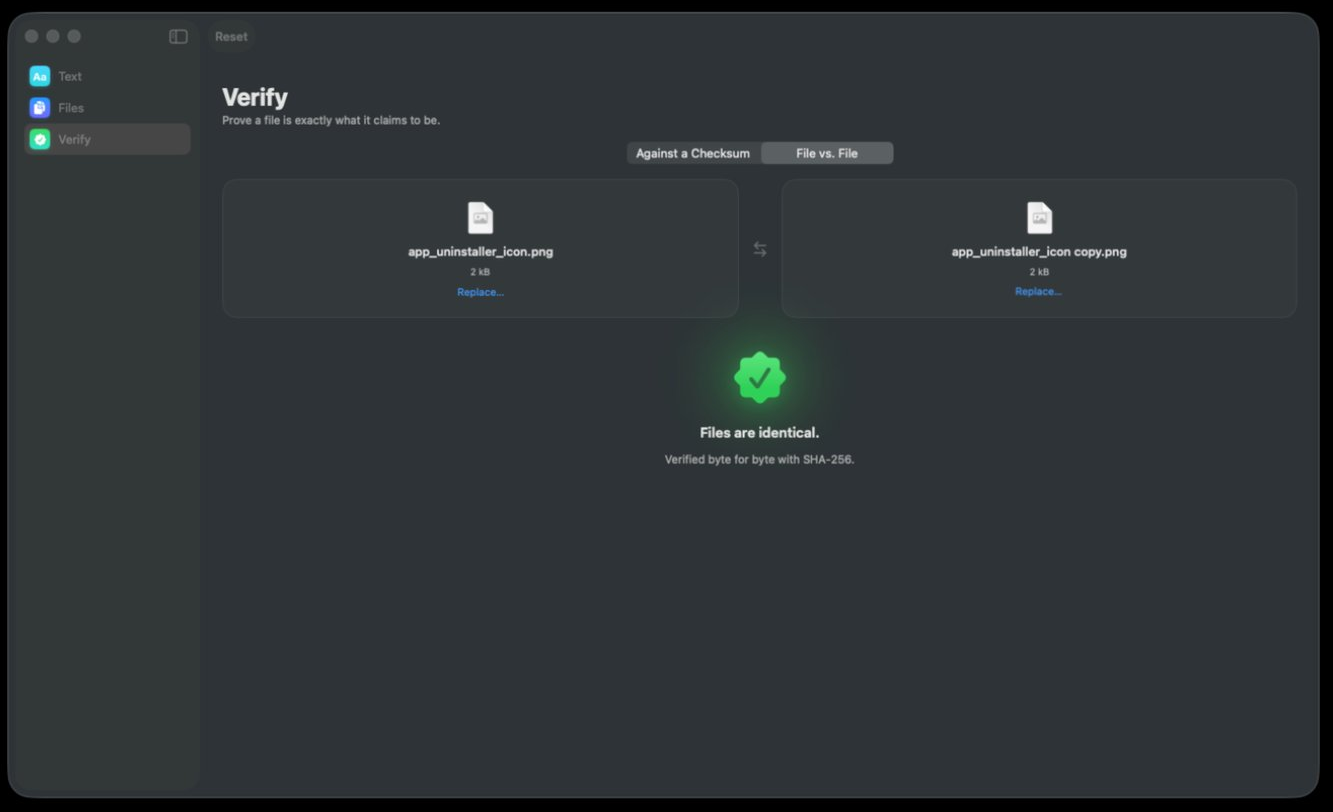
Click Verify in the sidebar and pick File vs. File on the segmented control. The other mode, Against a Checksum, is for when somebody has given you a string to compare against; here you have two files and no string.
-
Fill both wells
Drag one file into the left well and the other into the right. Each well fills in with an icon, the file name and the size — read both sizes before you go any further, since two wildly different sizes mean you already have your answer and a well that is still empty means a drop that missed.
-
Swap them if the order bothers you
The swap control between the two wells exchanges them, and the Replace… link on either well changes one side without disturbing the other. Neither affects the result — a comparison is symmetrical — but putting the original on the left and the copy on the right makes the screen easier to think about.
-
Read the verdict
Both files stream past once and the answer appears below: a green seal and Files are identical. when they match, with a line underneath naming the algorithm the comparison used, and an equally plain statement when they do not. Reset in the toolbar starts you over when you have another pair to do.
When the two files are not on the same Mac
This is the case where a digest stops being a convenience and becomes the only option. A side-by-side comparison needs both files mounted at once; a digest needs one file and 64 characters of text, and those 64 characters travel over anything — a message, a ticket, a phone call if you are patient.
So if the other copy lives on somebody else’s machine, ask them for its SHA-256 rather than for the file, and make sure you both name the algorithm — a digest is only comparable with one produced by the same function. If the copy lives on a server you can reach, hash it there and bring the string back. Either way you end up comparing one file against a value, which is the other mode of the same tool. Verifying a file after a transfer covers that round trip in full.
There is a middle route for more than two files: drop both sets into the Files tool, let every file produce a digest, and export the result as a manifest you can compare with another one later. Checking files against a manifest is the version of this page that scales past a pair.
Identical bytes is not the same as an identical file
A digest covers a file’s data and nothing else, which is usually exactly what you want and occasionally a surprise. Two files can be reported identical while differing in every one of these:
- Dates. Creation and modification times live in the filesystem, not in the file.
- Extended attributes. Finder tags, comments, the quarantine flag a browser attaches and the record of which URL a file came from all sit beside the data rather than in it. So do resource forks.
- Permissions and ownership. A file you can execute and an identical one you cannot will compare as the same.
- Where the bytes physically are. Duplicating a file on the same APFS volume shares the original’s blocks until one of them changes. One copy of the data, two files, identical digests.
An application, a .rtfd, a Logic project and a Photos library are directories that the Finder draws as single items, so there is no one digest to compare. Hashing a folder explains what you get instead and how to use it.
Why two files that look the same never match
Plenty of pairs are identical in every way a human cares about and different in every byte that matters to a hash. This is the single most common reason a comparison comes back negative when you were sure it would not.
Exporting the same photo or the same timeline twice produces two different files: encoders are not obliged to be deterministic, and the export embeds a timestamp even when they are. Saving the same document again rewrites metadata you never see — a PDF carries a creation date and a unique document identifier, so two PDFs of the same text have different digests. Zipping the same folder twice stores the current modification times and can add extra entries for Finder metadata, so the archives differ even though their contents do not.
The rule underneath all three: a digest answers are these the same bytes, never do these mean the same thing. For the specific cases, hashing photos and video covers why an export never matches its master, and hashing a ZIP archive covers the two different checks that live inside an archive.
Which of the three routes you need
The question never changes; what changes is how much of it you can hold at once. The window gives you three shapes for it, and picking the right one up front saves more time than anything else on this page.
| Route | Answers | Needs both files at once |
|---|---|---|
| File vs. File, in Verify | Whether these two hold the same bytes, as a sentence | Yes, both mounted |
| Against a Checksum, in Verify | Whether this file matches a digest somebody sent you | No — one file and 64 characters |
| Files, then export | A digest for every file in a tree, as a list you can keep | No — one side now, the other whenever |
None of the three has a shortcut past reading the bytes, and a side-by-side comparison has no early exit either: a digest is not a digest until every byte has gone through it, so both files are read to the end even when they diverge in the first megabyte. The work is therefore the size of both files, and the limit is the slower of the two disks. SHA-256 keeps up with roughly 2 GB/s on Apple Silicon, which is more than most external drives can supply, so on anything USB or networked the arithmetic is waiting on the disk rather than the other way round. Memory does not move with the file size: the app sits at around 16 MB whether the pair is two text files or two 9 GB videos.
For a batch rather than a pair, Files is the tool with the patience built in — live throughput and an estimated time remaining while it runs, a pause that picks up from the exact byte instead of starting the file again, and the export at the end. And if the two things in front of you turn out to be strings rather than files — a key somebody retyped, one line out of two otherwise identical config files — none of the three routes applies: hash the first value in the SHA-256 generator on this site, copy the digest, then type the second value and paste that digest into the page’s Check a checksum tab, which compares the two for you. Nothing is uploaded, and no file is involved at any point.
Troubleshooting
The sizes match but the files do not
That is the normal outcome for two files from a common ancestor, and it is exactly the case a digest exists for. Look first for metadata written inside the file — an export timestamp, an EXIF field, a document identifier — and second for a genuinely corrupted copy, where the damage replaced bytes rather than removing them and so left the size exactly where it was.
It takes a long time on a big pair
Both files have to be read end to end, so the work is twice the size of one file and the limit is almost always the slower of the two disks rather than the arithmetic. A network share or an old USB enclosure dominates the time completely, and there is no shortcut that avoids reading the bytes. If you will be asking the same question again next month, hash each file once and keep the digests: re-checking a string costs nothing.
It says identical but the two files behave differently
Then the difference is not in the data: look at permissions, a missing execute bit, the quarantine flag a browser attached, or the possibility that what you compared was one file inside a bundle whose other contents are not the same. It is also worth checking that you are opening the file you compared rather than a third copy elsewhere in the same folder tree.
I want to compare two folders, not two files
Drop each folder into Files so that every file underneath it gets its own digest, and export each run as a manifest — it is the two lists you compare, not the two trees. Expect the lists to disagree over files you never put there: a .DS_Store appears the moment the Finder looks at a folder, and it records window size and icon positions, which differ from machine to machine. Ignore those rows, or take the ones you do not care about out of the list with the remove button on the row before you export.
One of the wells will not take my file
Dragging a file in from the Finder is what grants a sandboxed app access to it, so a drop that did not quite land leaves you with an empty well and nothing else to go on. Drop it again onto the middle of the well, or use Replace… and pick it through the open panel, which grants the same access by a different route. Files inside Desktop, Documents and Downloads, and anything on a removable volume, each sit behind their own macOS permission, and picking a file explicitly is the quickest way past all of them.
Frequently asked questions
How do I check if two files are identical on Mac?
Compare their contents rather than their descriptions. Put one file in each side of File vs. File in the Verify tool and read the verdict: a green seal and the words Files are identical. when the two hold the same bytes, and an equally plain statement when they do not. The answer is computed from every byte in both files, which is the only comparison that settles the question — names, sizes and dates do not.
Can Finder compare two files on a Mac?
No. Get Info reports a name, a size and some dates, and none of those describes the contents — two identical files commonly differ in all their dates, and two different files commonly share a size. There is nothing in the Finder that looks inside two files and compares them, which is what File vs. File in the Verify tool is for: drop one file into each well and the verdict appears underneath as a sentence.
Do two files with the same name and size contain the same data?
Not reliably. Matching sizes are the normal case for two files that came from the same source, so a size match is weak evidence at best — a single altered bit anywhere in a file leaves its size exactly as it was. A digest covers every byte, which is why it can answer the question and a size cannot.
What is the fastest way to compare two large files on a Mac?
Glance at the two sizes first, since a difference there answers the question for nothing. After that, drop them into File vs. File and let both stream past once. You are limited by how fast the slower of the two disks can supply the data rather than by the comparison — SHA-256 runs at roughly 2 GB/s on Apple Silicon, more than most external drives can deliver. If only one of the two is reachable at a time, hash that one and compare its digest against the other.
Can I compare two folders instead of two files?
Yes, but not as a single side-by-side comparison — a folder has no one digest of its own. Hash both folders so that every file gets its own digest, export each run as a manifest, and compare the two manifests. Lining the two lists up tells you which files changed, which are missing and which are new, rather than just whether something did.
Why do two copies of the same photo have different checksums?
Because they are not copies — they are two exports. Re-encoding a photo or a video produces different bytes even with identical settings, and the file carries an export timestamp besides. A true copy — one the Finder made, or one that came through a transfer intact — always has the same digest as its original; anything that re-saved the file does not.