How to hash a large file on Mac
The file is 96 GB and you need its SHA-256. Size turns out not to be the problem it looks like: Rocket Hash streams the file past the algorithm once and holds roughly 16 MB of memory whether you point it at a text note or at a terabyte. Time is the variable that actually matters, so this page is about the arithmetic, the bottleneck, and how to run a job for an hour without sitting over it.
The file is 96 GB: a virtual machine bundle, a Final Cut library, a forensic image, a database dump, or the disk image of a Mac you are retiring. You want its SHA-256, and the thing you are quietly worried about is whether your Mac can do that at all without falling over.
It can, and the reason is dull. A hash function does not need your file. It needs the bytes in order, a few dozen at a time, and it keeps a fixed amount of state between them. The file streams past once and is never held anywhere, so memory stays flat at roughly 16 MB no matter what the size on disk says.
Which means size is not the interesting variable here — time is. This page covers working out how long a very large file will take before you commit to it, what actually makes it slow, how to leave a long run unattended safely, and what to do with the digest once you have it. If your file is an ordinary one, hashing a single file is the short version and all you need.
A big file is not a different operation, only a longer one. Divide the size by the read rate of the disk it lives on and you have your answer — the algorithm is almost never the part you are waiting for.
Why the size stops mattering
SHA-256 is a state machine. It consumes its input in 64-byte blocks, and between blocks it carries 32 bytes of internal state — eight 32-bit words, and nothing else. Feed it a block, the state updates, the block is finished with and can be thrown away. At the end the message is padded out to a whole block, that last block is absorbed, and the 32 bytes of state are printed as 64 hexadecimal characters. SHA-512 does the same thing with 128-byte blocks and 64 bytes of state.
Nothing in that description mentions how long the input is, which is exactly why a streaming implementation has a flat memory profile. The buffer a program keeps is sized for throughput — asking the disk for several megabytes at a time is far faster than asking for 64 bytes at a time — and not for the file. Hence roughly 16 MB, constant, whether the job lasts a tenth of a second or an hour.
The tools that fall over on large files are the ones that read the whole file into memory before they start, which was a perfectly reasonable shortcut back when files were small. It shows up as a spinning cursor, then swapping, then a failure at some arbitrary ceiling. Streaming is the opposite design, and it is the whole reason a 96 GB file is no harder than a 96 kB one: the Files tool reads the bytes once, in order, and never climbs above roughly 16 MB while it does.
This is also the line between what a web page can do and what the app is for. The free calculators here — the SHA-256 generator and its siblings — hash text you type: a key, a line out of a config file, a value somebody sent you, with the digest updating as you type. A 96 GB disk image is not text, and a text box is not where it goes; reading it off your disk is the job the Files tool exists for.
How long it will take
It is one division. Seconds equals gigabytes divided by the read rate in gigabytes per second, and that read rate belongs to the disk, not to the hash.
Call it roughly 2 GB/s for SHA-256 on Apple Silicon, which puts 100 GB at about fifty seconds of actual arithmetic. So if a job is going to take a quarter of an hour, fourteen of those minutes are the drive handing over data and one of them is the processor doing sums.
| Where the file lives | Typical read rate | 100 GB | 1 TB |
|---|---|---|---|
| Internal SSD, recent Mac | 3 GB/s | 35 seconds | 6 minutes |
| Thunderbolt 3 NVMe enclosure | 2 GB/s | 50 seconds | 8 minutes |
| Internal SSD, older Mac | 1 GB/s | 2 minutes | 17 minutes |
| USB 3 SSD enclosure | 400 MB/s | 4 minutes | 42 minutes |
| USB hard disk, spinning | 150 MB/s | 11 minutes | 1 hour 50 |
| Gigabit network share | 110 MB/s | 15 minutes | 2 hours 30 |
| Wi-Fi, or a tired old drive | 40 MB/s | 42 minutes | 7 hours |
Pick the row that matches where the file actually is, not where you would prefer it to be. The same 100 GB file costs you half a minute on the internal SSD and three quarters of an hour over Wi-Fi, and that gap is the whole reason hashing files on an external drive is worth reading before you start a long job over a cable.
Two other things nudge the number. Eight digests from one read is still eight times the arithmetic, and on internal storage or a Thunderbolt enclosure that can make the processor the slower half rather than the disk — on a USB hard disk it will not come close to mattering. And the opening seconds are often faster than the rest, because macOS may still have part of the file cached from whatever last wrote it, which makes an early estimate flattering. Watch the throughput figure rather than the countdown — it is the one telling you about your hardware.
Hash a very large file
-
Pick the algorithm first
Find the # in the Files toolbar — that is the Algorithm control — and set it before you add anything. On a file this size the decision is worth a moment rather than a shrug: SHA-256 is the right default because it is what everyone else publishes, and anything else should be a choice you can justify rather than an accident.
-
Add the file
Drag it in from the Finder, or use the add (+) button in the toolbar. It appears as a single row: icon, the file name in bold, the folder it came from underneath, and the size. Read that size before you commit an hour to the job — a 40 GB file where you expected 96 GB is a truncated copy, and hashing it tells you nothing you want to know.
-
Check the first rate reading
Live throughput and an estimated time remaining appear once it starts moving. Give it twenty or thirty seconds to settle, then compare it against the table above. A figure an order of magnitude below what that drive ought to manage means something else is in the way, and why hashing is slow on a Mac has the usual six culprits in order.
-
Leave it running, or pause it
The status bar keeps a summary on the left and progress on the right, so a glance tells you where you are. If you need the disk or the machine back, you can pause mid-file and resume from the exact byte rather than starting the read over, and you can stop a run gracefully instead of killing it. What you should not do is move, rename or edit the file while it streams.
-
Keep the result
The copy button on the row lifts the digest straight to the clipboard, which beats dragging a selection across 64 characters, and the chevron beside it unfolds the row into every algorithm that was computed. For a file you will want to check again in six months, use the export control and keep the manifest — exporting a checksum manifest explains the two-column format it writes.
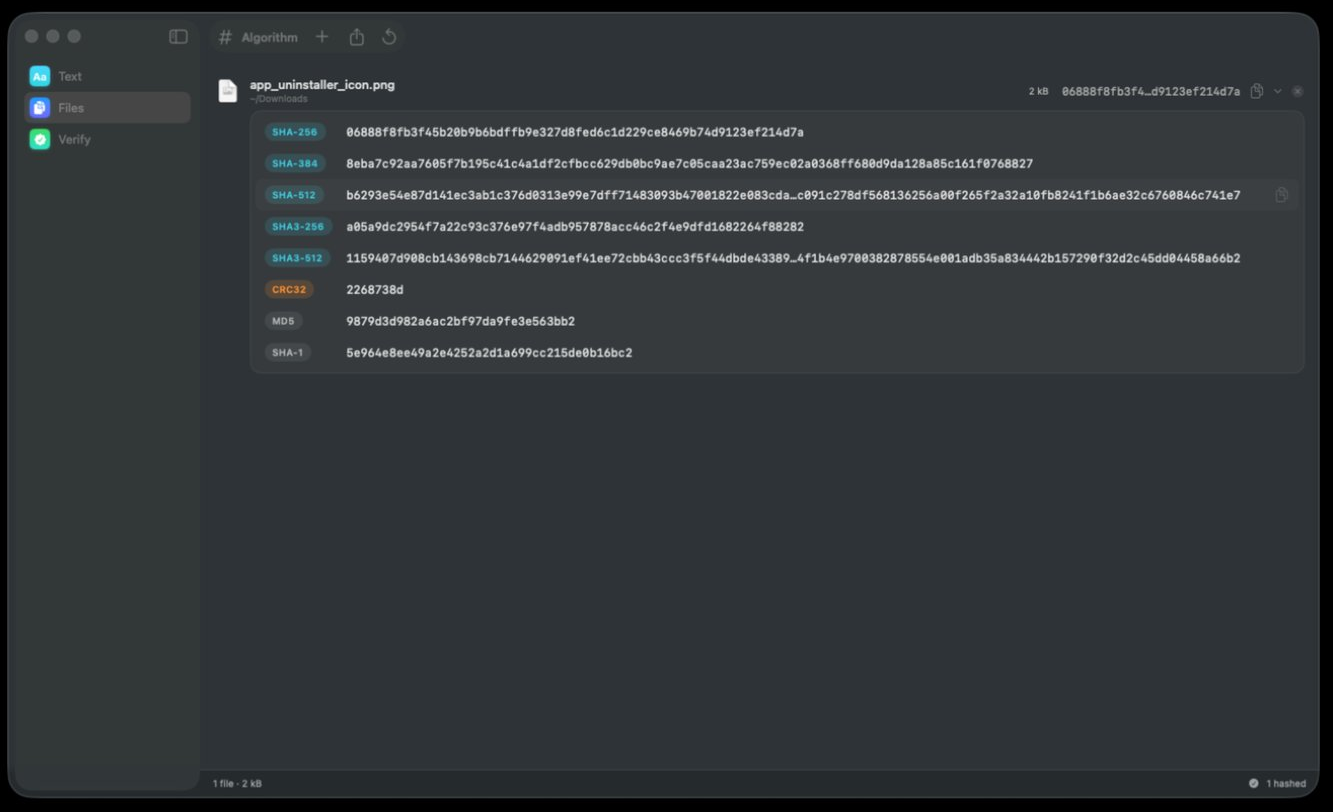
Running a job that takes an hour
Four things go wrong on long runs. All four are avoidable if you think about them before you start rather than forty minutes in.
- The Mac goes to sleep. A machine on mains power can be told in System Settings not to sleep on its own, and that setting is the difference between coming back to a finished digest and coming back to a half-finished one. A laptop running on battery with the lid shut will sleep whatever you have running.
- The file changes underneath you. The largest files on any Mac tend to be the ones something else is still writing: a running virtual machine, an open database, a Time Machine sparse bundle, a download that has not finished. The digest you get describes a file that never quite existed — hashing a file that is still being written covers how to tell and what to do instead.
- The drive disappears. An hour is a long window for a marginal cable, a bus-powered disk that spins down, or a hub with too much on it. Straight into the Mac, on a short cable, for anything that matters.
- Something else is reading the same disk. Spotlight indexing a volume you just attached, a Time Machine run, a cloud client working through a backlog. They are all competing for the same finite number of megabytes per second, and the throughput figure will show you losing.
Pause exists for the interruption you can see coming — you need the bandwidth for a video call, or you want the drive for ten minutes. Pausing and resuming a long run goes into what picking up from the exact byte does and does not save you.
Re-checking the same huge file later
The digest you waited forty minutes for answers one question on one afternoon, and it is worth more than that. Kept somewhere, it turns every later copy of that file into something you can test with a single read instead of two — which on a 96 GB archive is the difference between an hour and two.
That is the job of the Verify tool's Against a Checksum mode. Add the file, paste the 64 characters you saved, and the answer arrives as a green seal and a sentence rather than as a row of hex for you to compare by eye. You do not tell it which algorithm to use either — that is detected from the checksum you paste, so a digest you recorded two years ago still checks without you having to remember what produced it.
The other mode, File vs. File, puts two drop wells side by side with a swap control between them and compares the files directly. That is the one to reach for when both copies exist and nobody wrote a digest down: the archive on the drawer disk against the original still on the NAS. Price it honestly before you start, though. Two 96 GB files is 192 GB of reading, and if they hang off the same cable they will spend the whole run competing for it, so one recorded digest genuinely halves the work.
Which is the argument for exporting while the window is still full rather than closing it and trusting your memory. A manifest line is the digest, two spaces, then the path — small enough to keep in a note or a repository for as long as the file matters, and verifying a file against a SHA-256 checksum takes that comparison end to end.
Troubleshooting
The estimate keeps jumping around
An estimate is the size still to go divided by how fast the last few seconds went, so it is only as steady as the drive under it. A network share that renegotiates, a hard disk that has to seek, or another process grabbing the bus will all make it lurch. Take the figure seriously after a minute, not after five seconds, and trust the throughput number over the countdown.
It started fast and then crawled
The first part of the file was probably already in the file cache in RAM, arriving at memory speed, and what you are seeing now is the real rate of the disk. That is normal and the later number is the honest one. If the collapse is to a few megabytes a second rather than merely to disk speed, look for a second process reading the same volume.
The digest came back as e3b0c442…
That one is worth memorizing: e3b0c44298fc1c149afbf4c8996fb92427ae41e4649b934ca495991b7852b855 is the SHA-256 of nothing at all. If a 96 GB file produces it, you did not hash 96 GB — you hashed an empty placeholder, a zero-byte stub left by a failed copy, or a cloud-storage file that is a pointer on disk rather than actual content.
Two runs of the same file disagree
Hashing is deterministic, so two different answers mean two different sets of bytes. Either the file changed between the runs, or one of the runs read something else — a similarly named file, or the same file over a connection that quietly substituted a partial read. Copy the file to local storage and run it twice there; if those two agree, the problem was the path, not the file.
The run died before it finished
A half-read file yields no digest at all, which is the correct behavior — there is no partial answer to give you, because the final state depends on every byte including the last. Work out what interrupted it (sleep, an unmount, a dropped share) and start again, rather than hoping a second attempt gets luckier.
Frequently asked questions
How big a file can I hash on a Mac?
There is no size at which the arithmetic stops working. Because the file is streamed rather than loaded, memory stays flat at roughly 16 MB whether the file is 2 kB or 2 TB, so the real ceiling is how long you are willing to wait and what the filesystem itself allows. A 100 GB file is unremarkable; a terabyte is a lunch break.
Does hashing a 100 GB file need 100 GB of memory?
No. A hash keeps a small fixed amount of internal state — 32 bytes for SHA-256 — and consumes the input in 64-byte blocks, discarding each block once it has been absorbed. The only memory a good implementation uses beyond that is a read buffer sized for disk throughput, which is why the footprint stays around 16 MB regardless of the file.
How long does it take to hash 1 TB?
Divide by the read rate of the disk. At 3 GB/s on a recent internal SSD that is about six minutes; at 400 MB/s over a USB 3 SSD, roughly forty minutes; at 110 MB/s over a gigabit network share, two and a half hours. SHA-256 itself runs at around 2 GB/s on Apple Silicon, so on anything but the fastest internal storage you are waiting for the drive rather than the algorithm.
Can I pause a long hash and carry on later?
Yes — a run can be paused part-way through a file and resumed from the exact byte it stopped at, so you do not pay for the gigabytes you already read. A run can also be stopped gracefully rather than force-quit. What no tool can do is survive the file being modified while you are away, because then the bytes you resume into are not the ones you started with.
Is SHA-512 faster than SHA-256 on very large files?
In pure software on 64-bit processors, often yes, because SHA-512 works on 64-bit words and larger blocks. On hardware with dedicated instructions for both it is no longer a reliable rule, and in the case that matters here it is beside the point — if the disk supplies 400 MB/s and either algorithm can consume more than a gigabyte a second, the choice changes nothing about how long you wait.
Will hashing a huge file wear out my SSD?
No. Flash memory wears from writing, and hashing never writes: it opens the file, reads it once, and closes it. Nothing is modified, no modification date changes, and no temporary copy is made — see whether hashing changes a file. The cost of a big job is time and a little electricity.
Why did my enormous file finish much faster than expected?
Most likely it is sparse. A disk image or virtual machine file can report a size far larger than the number of bytes actually committed to disk, and the unwritten regions read back as zeroes almost instantly. The digest is still correct for the file's full logical content; the drive simply had less real work to do than the size suggested.