How to hash a file on Mac
Somebody wants the SHA-256 of a file you are about to send, or you want a fingerprint of your own copy before it goes anywhere near a network. Drag the file into Rocket Hash, read the digest off the row it creates, and click to copy it — and if you want all eight algorithms rather than one, the file is still read only once.
You have one file. Maybe a colleague asked for “the SHA-256” before you send it over, maybe you want to record what the file looks like today so that in six months you can prove nothing has touched it, maybe a download page published a value and you want to see your own. The job is the same either way: turn the bytes sitting on disk into a fixed-length string you can copy, paste and compare.
On a Mac that takes one drag. What this page covers is the whole of it — getting the file into the window, reading the row that comes back, picking which of the eight algorithms you want, and the part that quietly catches people out: knowing exactly which parts of a file end up in the digest and which parts do not.
If what you have is a string of text rather than a file, that is a different operation with a different answer, and hashing text is the free route to it. If you have a folder, read hashing a folder first, because a folder is not a big file and it does not produce one digest.
Select Files in the sidebar, drag the file in, and use the copy button at the end of its row. Everything below is for when you want to know what it is you just copied.
Which parts of the file get hashed
A file hash reads the file's data — the bytes any program would get if it opened the file and read to the end — and nothing else at all. That sounds too obvious to state until you see the list of what it leaves out.
- The name. Rename
ubuntu-24.04.isotox.isoand the digest does not move a character. A file's name lives in the folder that contains it, not in the file. - The location. The same bytes in
~/Downloads, on a USB stick and on a colleague's machine give one answer. That is the entire reason a digest is worth publishing. - The dates. Created, modified, last opened — none of them are part of the data, so a file that has been copied around for a decade still matches the checksum it shipped with.
- Finder tags, comments and the quarantine flag. These are extended attributes, stored beside the file rather than inside it. A disk image you downloaded from the web carries a quarantine attribute that an otherwise identical local copy does not, and both still hash to the same value — which is precisely why a download can match a publisher's checksum at all.
The consequence runs both ways. Two files you would describe as different can be identical as far as a hash is concerned, and two you would swear are the same can differ by one byte. An empty file has the same SHA-256 as every other empty file in the world: e3b0c44298fc1c149afbf4c8996fb92427ae41e4649b934ca495991b7852b855. If that string turns up on a row, the file is zero bytes long and whatever went wrong happened before you got here.
Hash a single file
-
Open the Files tool
Click Files in the sidebar — the blue document icon, between Text and Verify. The toolbar across the top is where the Algorithm control, the add (+) button, the export button and the reset button live.
-
Add the file
Drag it out of the Finder and drop it into the window, or click add (+) and pick it from the panel that opens. Dragging has a second advantage on a modern Mac: handing an app a file directly is also how you grant it permission to read that file, which saves a detour through System Settings.
-
Choose the algorithm
The Algorithm control in the toolbar is the one with the
#on it, and it decides which digest the row shows you. SHA-256 is the answer roughly nine times out of ten, and it is what a download page means when it says “the checksum”. If you are matching somebody else's published value you do not get a choice: it has to be the same function they used. Which algorithm to use is four questions long and settles the rest. -
Read the file row
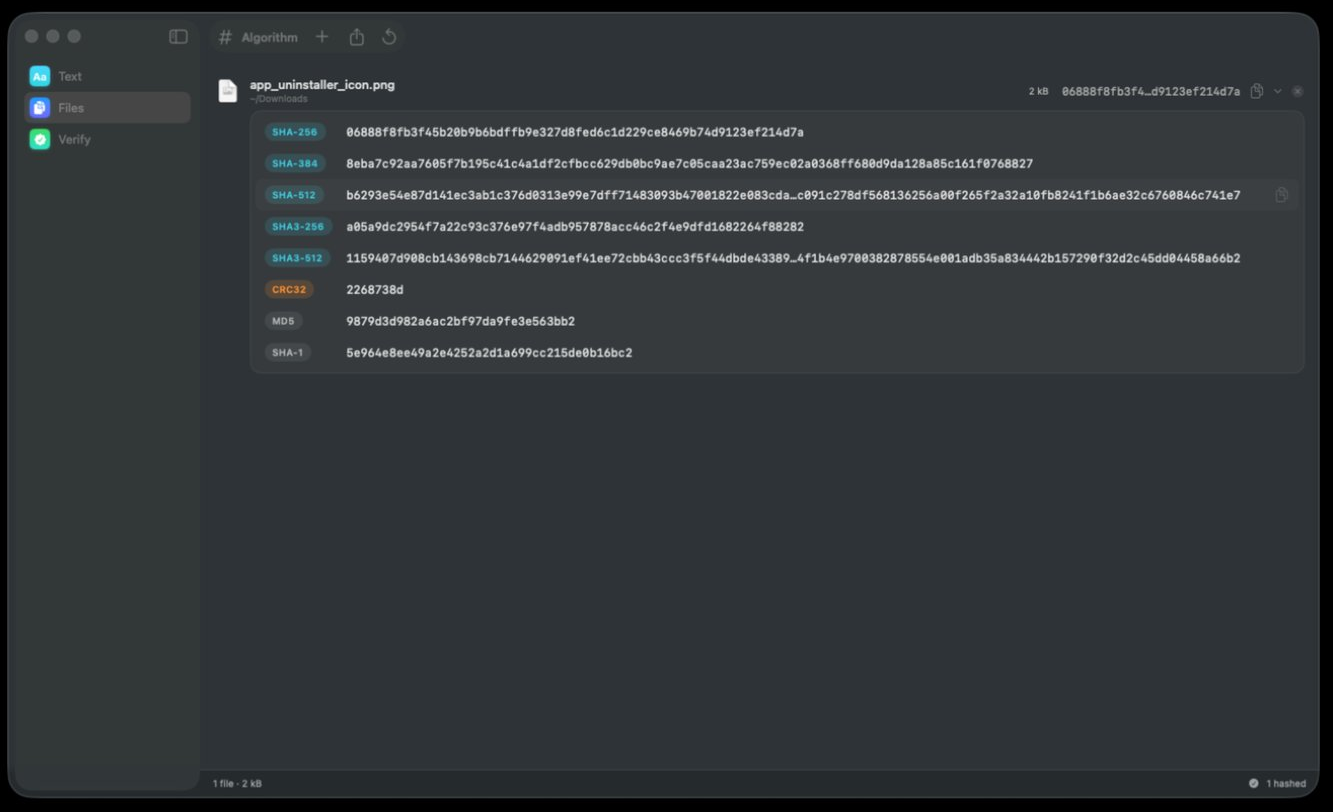
The file arrives as a single row: an icon, the name in bold, the folder it came from underneath it, the size, and then the digest in monospaced type, truncated through the middle with an ellipsis because sixty-four characters laid out in full would push everything else off the edge of the row. Look at the folder and the size before you look at the digest. Hashing the wrong copy — last month's version, a
(1)duplicate, a half-finished download — is the most common mistake in this whole business, and the size is where you catch it. -
Copy the digest
Use the copy button at the end of the row rather than selecting the text. Partly because the row shows an abbreviated form and the clipboard gets the whole thing, and partly because dragging a selection across sixty-four characters is how a digest quietly loses its last one. If what you want is the digest written out next to the file name in the format other tools read, that is the export button in the toolbar rather than the clipboard.
-
Expand every algorithm, if you want them
A disclosure chevron sits at the end of every row; open it and all eight algorithms for that file appear, one line each. This is the part worth knowing about: the file is read exactly once and all eight digests come out of that single pass, so expanding the row is not eight trips across the disk and it does not cost you eight times the wait.
One read of the disk
The file is streamed rather than loaded. Bytes come off the disk in order, go through all eight algorithms, and are discarded; the only thing kept between chunks is each algorithm's internal state, which is a few dozen bytes. Memory stays flat at around 16 MB whether the file is 2 kB or 200 GB, so there is no size at which this stops working and starts swapping.
Speed, then, is a question about your disk and not about the arithmetic. Apple Silicon gets through SHA-256 at roughly 2 GB/s — representative, hardware-dependent, and comfortably faster than most drives can supply data. For a single file the honest estimate is “however long it takes to read this file once”, which for anything under a gigabyte on an internal SSD is less time than it takes to look at the screen. Hashing a large file covers the jobs long enough to need planning.
How long the digest should be
Because the row abbreviates, you cannot count characters on screen — paste the digest somewhere plain if you need to. A digest's length is fixed by its algorithm and never varies with the size of the file, so a 40 MB installer and a 40 GB image both produce exactly this many characters:
| Algorithm | Hex characters | Notes |
|---|---|---|
| SHA-256 | 64 | The default, and what “the checksum” usually means |
| SHA-384 | 96 | SHA-512 truncated, with a different initial state |
| SHA-512 | 128 | Often faster than SHA-256 on 64-bit hardware |
| SHA3-256 | 64 | Same length as SHA-256, entirely different machine |
| SHA3-512 | 128 | Same length as SHA-512, entirely different machine |
| CRC32 | 8 | Error detection only — not a security property in sight |
| MD5 | 32 | Fine for spotting accidents, useless against intent |
| SHA-1 | 40 | Collisions demonstrated in public in 2017 |
Note the two pairs. Length narrows the field but does not name the algorithm: 64 characters is SHA-256 or SHA3-256, and 128 is SHA-512 or SHA3-512. So if you are sending a digest to somebody, send the algorithm's name with it — a bare string of hex makes the person at the other end guess, and half the time they guess wrong.
When you already have a value to compare against
Much of the time the digest is not the thing you were after — a plain yes or no was. If a download page published a checksum for this file, or somebody sent you one in a message, comparing sixty-four characters by eye is the slowest and least reliable way to finish the job. Select Verify in the sidebar instead. It is built for the comparison rather than for the digest, and it is an independent one-time unlock from the file list.
Verify opens on a segmented control with two modes. Against a Checksum is the one for a published value: add the file, paste the string you were given, and the answer arrives as a green seal and a sentence rather than two rows of hex to squint at. You do not have to tell it which function produced the string — the algorithm is detected from the checksum itself, which helps most on the download pages that never say. Verifying a SHA-256 checksum walks the whole comparison, and identifying which algorithm a checksum uses covers a bare string nobody labeled.
File vs. File is the other mode, and it is the answer when there is no published value at all: the copy you just transferred against the original, or today's export against last month's. Two drop wells sit side by side with a swap (⇄) control between them, and each well shows the file's icon, its name and its size with a Replace… link — so you can hold one side steady and cycle several candidates through the other. The verdict appears below as a sentence with the algorithm it used underneath it. Comparing two files covers the cases where two wells beat two digests.
Keeping the digest for later
A digest you copied into a message has done its job and gone. If the reason you hashed the file was the six-months-from-now one — being able to show that nothing has touched it since today — the clipboard is the wrong place to put it. Use the export button in the toolbar, which writes the list out in the same two-column format published checksum lists use: one digest, two spaces, one filename, one line per file.
Keep that list somewhere other than beside the files it describes. A manifest sitting in the same folder as the data it vouches for can be rewritten by anything that rewrites the data, which makes it a record of what the folder says about itself rather than a record of what you saw. Coming back to it later is the same drag: add the files again, export again, and set the two lists side by side. Checking files against a manifest is that job end to end, and sharing a checksum with somebody covers the other direction, where the problem is getting 64 characters through a chat window without losing one.
Troubleshooting
The digest does not match the published one
Before anything dramatic, check that the two values are the same length — a 32-character published value against your 64-character one is a comparison that was never going to succeed. Then check the file size against the download page. Unfinished downloads and wrong builds account for the overwhelming majority of mismatches, and what to do when a checksum does not match walks the causes in order of likelihood.
Another tool reports a different digest for the same file
It should not, and when it does the two are almost never reading the same bytes. The usual causes are a second copy of the file with a similar name, a path that still points at last week's version, and a file that is being written while it is read. The folder line under the file name in the row settles the first two of those in a glance; why two tools give different hashes covers the rest, including the text file that picked up different line endings on its way to you.
macOS will not let anything read the file
Sandboxed apps get access to what you hand them, not to whatever they ask for, and macOS gates several ordinary locations separately on top of that. The fastest way through is to stop using an open panel and drag the file in from the Finder instead — the drag itself is the grant, and it covers exactly the one file you dragged. Anything broader than that, including a whole folder you want to come back to, is a System Settings job: permission denied when hashing names the switches.
The file is in iCloud Drive and not actually on this Mac
With storage optimization switched on, a file can show in the Finder as a placeholder with its contents still in the cloud. Anything that reads the file has to pull it down first, which is why a 4 GB file on a fast SSD can suddenly take ten minutes. The cloud arrow next to the file name in the Finder is the tell; download it first and the second attempt runs at disk speed.
I need the hash of an app, not a file
Then what you are pointing at is not a file. An .app is a folder, as are .rtfd documents, Photos libraries and Xcode projects, so dropping one in produces a row per file inside it rather than a single digest. What is genuinely one file is the disk image or archive it arrived in, which is also what any published checksum for it refers to — hashing a DMG covers that case. If all you have is the installed copy, hashing a folder explains what the rows you got are worth.
Frequently asked questions
How do I find the SHA-256 of a file on a Mac?
Select Files, drag the file into the window, and set the Algorithm control to SHA-256. The row that appears carries the digest, and the copy button at the end of the row puts all 64 hexadecimal characters on the clipboard rather than the shortened form the row has room to show. SHA-256 is a fixed function, so there is exactly one correct answer for a given set of bytes and it does not matter what computed it.
Does renaming or moving a file change its hash?
No. A hash covers the file's data only, so the name, the folder, the dates and any Finder tags are all outside it. The practical upshot is that two copies of the same bytes under different names produce identical digests, which is how finding duplicates by hash works at all.
What is the hash of an empty file?
Every zero-byte file has the same digest, because they all have the same — nonexistent — contents. For SHA-256 it is e3b0c44298fc1c149afbf4c8996fb92427ae41e4649b934ca495991b7852b855. Seeing that value is a reliable sign that a file was created but never written to, or that a download produced nothing.
Do I have to pick one algorithm, or can I get them all?
You can have all eight. The row shows whichever algorithm is selected in the toolbar, and expanding the row shows the rest. Because the file is read once and all eight digests come out of that pass, there is no speed penalty for wanting more than one — the cost is a single pass over the disk either way.
How do I know I hashed the right copy of the file?
Read the rest of the row before you read the digest. Under the file name in bold is the folder it came from — ~/Downloads, say — and beside that the size. Those two fields catch the three mistakes behind almost every wrong digest: last month's version, a (1) duplicate sitting next to the real file, and a download that stopped early. If the row is not the file you meant, the remove (⊗) button at the end of it takes the row out and you can drag the right one in.
Does hashing a file modify it?
No. Hashing is a read from start to finish: nothing is written, the modification date is untouched and the file does not move. That is what makes it safe to point at a master copy, an archive or a disk you do not own — see does hashing change a file.
Why do I get a different hash than my colleague for the same file?
One of you is hashing different bytes. The usual causes are a partially downloaded copy, two builds of the same version, a different algorithm with a coincidentally similar length, or a text file that picked up different line endings in transit. Why two tools give different hashes works through each of them.