How to verify a file after transferring it on Mac
A copy is two operations — writing bytes at one end and believing them at the other — and only the first of them reports back to you. Rocket Hash closes the gap: for one file it fingerprints both copies and answers in a sentence rather than in hexadecimal, and for ten thousand it produces the list that lets you line the two ends up against each other.
Forty gigabytes went across to the NAS in nine minutes and the dialog closed without complaint. What it counted was bytes handed over; what it watched for was an error coming back. Neither of those is the same thing as bytes that are now correct at the far end, and the obvious conclusion — that the transfer worked — is a little broader than the evidence.
Those two claims come apart more often than they should — over a flaky USB bridge, across a Wi-Fi link that dropped and recovered, onto a disk that was unplugged while its cache still held data, or through a sync client that decided to be helpful. No ordinary copy reads the destination back afterwards to check its work — not in the Finder, not through a sync client. Nothing verifies a copy unless you do.
Hashing gives you the claim you actually wanted. Fingerprint both copies, compare the two fingerprints, and you know whether the files hold identical bytes — whatever they are called, whichever filesystem they are sitting on, whichever machine produced them. This page covers a single file, a whole folder, and the awkward case where the far end is across a slow link and you would rather not read it all back. If you simply have two files and want to know whether they are the same, comparing two files is the shorter version of this job.
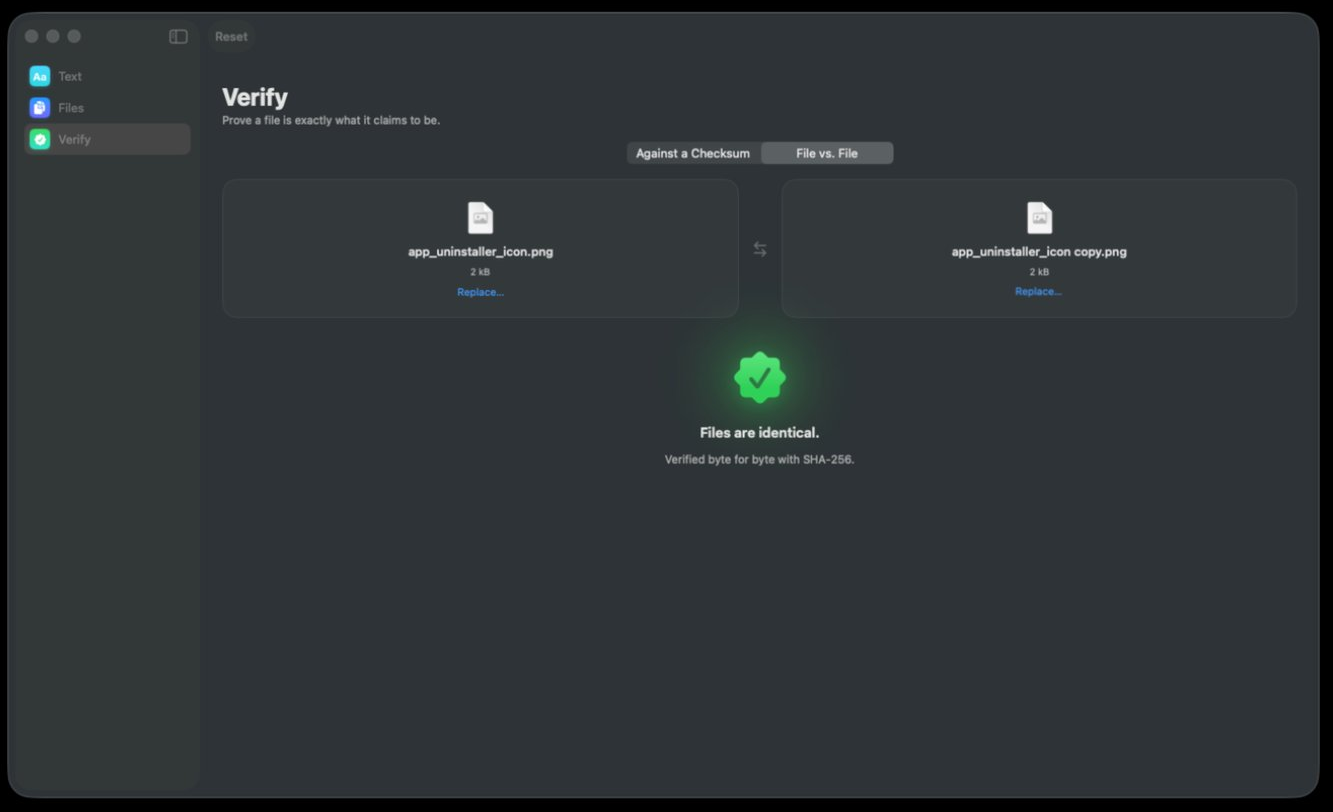
Eject and reconnect the destination, then open Verify, choose File vs. File, and drop the original in one well and the copy in the other. Everything below is about folders, slow links, and what a match does not cover.
Where a copy actually goes wrong
Silent corruption in transit is uncommon on modern hardware, and nowhere near uncommon enough to ignore when the file is the only copy of something. The failures that turn up in practice are dull rather than dramatic:
- The destination left the building early. macOS buffers writes, so “finished” in the Finder can still mean “queued”. That is the entire reason Eject exists, and pulling a stick without it is the single most common way to produce a file that is almost right.
- A cable or a bridge chip that drops bits. Cheap USB-to-SATA enclosures are the classic offender. The symptom is a few wrong bytes in a 40 GB file and no error message anywhere.
- The destination quietly ran out of room. Some network shares report a successful write and hand you a truncated file.
- Something transformed the file on the way. An FTP client in ASCII mode rewrites line endings; an archive gets recompressed; a web upload strips what it considers metadata. The result is not corrupt so much as a different file, which a digest reports just as plainly.
- The file was still being written when you copied it. An export, a render or a sync still in flight means you copied a moving target. Hashing a file that is still changing covers what that does to the numbers.
Notice what is missing from that list: the network itself, as a raw medium. Ethernet frames carry a CRC32 and TCP carries its own checksum, so the link layers are far from defenseless — but both are error-detecting codes with a fixed and fairly small number of bits, and across the number of packets a 100 GB transfer involves, “almost always caught” is not the same sentence as “always caught”.
One more thing a digest is indifferent to: everything about a file that is not its data. Permissions, Finder tags, extended attributes, resource forks, creation dates — none of it enters the calculation. A match tells you the contents survived the trip. It does not promise the copy is equally usable: send a Mac file to an exFAT stick and the contents will verify perfectly while the tags and the forks quietly do not come along.
Verify one file after a copy
When both copies are reachable from the same Mac — an external disk, a mounted share, a second volume — you never have to look at hexadecimal at all. Hand the two files over and read a sentence.
-
Eject the destination and plug it back in
This step looks like superstition and is not. Bytes you wrote a moment ago are often still held in memory, so reading the file straight back can hand you the copy in RAM rather than the copy on the disk — which would verify beautifully and prove nothing. Ejecting flushes the write and drops the cache; reconnecting forces a genuine read. For a network share, unmount and remount it.
-
Open File vs. File
Click Verify in the sidebar, then pick File vs. File on the segmented control at the top. The other mode, Against a Checksum, is for when somebody has published a digest for you to check against; here you have two real files and no published value, so the comparison is between them.
-
Drop the original and the copy
Drag the source into one well and the transferred file into the other, or use the Replace… link in either well to pick it from an open panel. Each well shows the file icon, the name and the size — read the two sizes before you go any further, because a size difference tells you the answer early and for free. The swap control between the wells makes no difference to the verdict; equality does not care which side a file sits on.
-
Read the sentence, not the hex
Both files stream past once and the verdict appears below as a green seal and a plain statement — files are identical, verified byte for byte, with the algorithm named underneath. A mismatch is stated just as plainly. There is no middle ground to interpret, because changing one bit of a file flips about half the bits of its digest — in hexadecimal, almost every character comes out different.
Verify a whole folder you just copied
One file at a time stops being reasonable at about the fifth file. For a folder, the unit of work becomes a manifest: a plain list of digests and filenames produced at one end and checked at the other.
Drop the source folder into Files, set the Algorithm control to SHA-256, and let it walk everything underneath. The status bar counts files and bytes on the left and progress on the right, and each file is read exactly once and all eight digests come out of that pass — so a second digest does not cost a second pass. When it finishes, use the export control to write the list out in the format shasum itself reads, which matters here because the machine at the far end is frequently not a Mac. Exporting a manifest has the detail.
Then do the same at the far end. Two things line up before you look at a single digest: the status bar's summary on the left gives you a file count and a total size for each run, and two runs that disagree on either of those have already told you something — a file that never arrived, or one that arrived short.
After that it is the digests you compare and not the paths, since a source and a destination almost never share a folder root. The exported manifest is two columns, one line per file:
43e0e7e9ca65e4cacb8ce10aec1f73c97939b520a55fe4a863c227194f743f10  reel-01.mov
2fc78205a52fbc2b4b03f3b2ed5ebc6ab3e0e2da678adcb68de9da68efff0f01  reel-02.mov
Because the digest and the filename sit on the same line, you never have to hold a value in your head: take the 64 characters from the line for the one file you are suspicious about, open Verify, choose Against a Checksum, and drop the far-end copy into the well. That turns a thousand-line diff into one verdict about one file. Checking files against a manifest is the page for lining two complete lists up by name, which is what you want once the tree is large enough that picking suspects by hand stops being realistic.
If a transfer drops a file’s contents but not the file, you get an empty file at the far end — and two empty files really are byte-for-byte identical. The SHA-256 of an empty file is always e3b0c44298fc1c149afbf4c8996fb92427ae41e4649b934ca495991b7852b855. Learn the first eight characters by sight; a row in a manifest that begins e3b0c442 for something that should not be empty is a failed transfer, not a match.
When the far end is slow, hash it there
Verification reads both copies, so it costs you a second full pass over the data — and the slow side is almost always the far one. Over a gigabit link, that is a real afternoon for a large archive.
| Reading from | Realistic sustained rate | 100 GB takes about |
|---|---|---|
| Internal SSD | Faster than the algorithm | A minute |
| USB 3 external SSD | 400 MB/s | Four minutes |
| USB 3 hard disk | 130 MB/s | Thirteen minutes |
| Gigabit Ethernet share | 110 MB/s | A quarter of an hour |
| Wi-Fi, good conditions | 50 MB/s | Half an hour |
Those are representative, not promises, and the internal SSD is the only row where the arithmetic is the limit rather than the disk: SHA-256 on Apple Silicon keeps up with roughly 2 GB/s, which is more data per second than most drives can supply. Why hashing is slow covers the rows that disappoint, and hashing files on an external drive covers what changes once the data is not local.
If you can run anything at all on the machine at the far end, the better shape is to hash the file where it lives and move only the digest. Sixty-four characters cross any network instantly. Produce the digest at the destination, paste it into an email or a message to yourself, then open Verify at home, choose Against a Checksum, drop in your local original and paste what came back. The comparison is then one local read rather than one local and one remote, and you get the same unambiguous verdict. Rocket Hash is doing nothing clever here — it is the same arithmetic either way — but it removes the step where you compare two 64-character strings by eye at the end of a long day.
And if the run has to happen over the wire anyway, it can be stopped mid-file and picked up from the exact byte rather than restarted, which matters when the file is 200 GB and you want the bandwidth back for an hour.
Troubleshooting
The digests match but the file will not open at the far end
Then the data arrived and something else did not. Resource forks, extended attributes and Finder metadata are not part of the file’s data stream, so they are not part of the digest — and filesystems such as exFAT and FAT32 cannot store them at all. Some older Mac formats genuinely need them. Copy to a disk formatted APFS or HFS+, or wrap the whole thing in a ZIP or a disk image first so the container preserves what the destination cannot.
The copy changed and nobody touched it
Look for a sync client first. Anything that manages a folder for you — a cloud drive, a backup agent, a media library — may rewrite a file for its own reasons, and some of them normalize or re-encode on upload. Check whether the destination folder is inside a synced tree, and if it is, verify against a copy taken outside it. Failing that, the file may simply have been mid-write when you hashed it.
Verifying takes longer than the copy did
That is expected and not a fault. A write can be acknowledged as soon as it is buffered, while a read has to actually produce every byte — so the honest read is frequently slower than the optimistic write it is checking. Hash at the far end and move the digest instead, as above, or accept the wait and let it run.
I already deleted the original
Then there is nothing left to compare against, and no amount of hashing can reconstruct the evidence. What you can do is stop the same thing happening next time: take a manifest of the files you still have, keep it somewhere other than the disk it describes, and you will be able to answer the question at any point in the future. That is the subject of verifying a backup.
The app cannot read the volume
Removable volumes and network shares each sit behind their own permission on a modern Mac, granted the first time something asks for them. Dragging the file in from the Finder grants access to that file directly and is the quickest way through; permission denied when hashing a folder has the System Settings route for a whole disk.
Frequently asked questions
Does the Finder verify a file after copying it?
No. A copy writes the data and reports whether any step returned an error; nothing in it reads the destination back to compare with the source, in the Finder or anywhere else. That is why “the progress bar finished” and “the file is correct at the far end” are two separate claims, and why the second one has to be checked on purpose once the copy is done.
How do I know a file copied to a USB drive is not corrupted?
Eject the drive and plug it back in, so you are reading the disk rather than the copy of those bytes still in memory, then compare the original and the copy with a hash. Identical digests mean identical data. Skipping the eject is the most common way to get a reassuring result that means nothing.
Do I need the same algorithm on both ends?
Yes — two digests are only comparable when they come from the same function, which is why a 64-character SHA-256 can never be matched against a 32-character MD5. For a transfer check any of the eight algorithms will detect accidental corruption, so the choice barely matters; SHA-256 is the sensible default because it is what every other tool and manifest assumes.
Will a checksum match if the file permissions changed during the copy?
Yes. A digest is computed over the file’s data and nothing else, so permissions, Finder tags, extended attributes, creation dates and resource forks are all invisible to it. The contents can verify perfectly while the copy has lost metadata it needed — which is a real problem, just not one a hash can detect.
Can I verify a large file over a network share without downloading it again?
Only if something on the far machine can do the hashing, in which case that is the better plan: compute the digest where the file lives and move the 64 characters instead of the gigabytes. If the share is all you have, the file has to be read across the network, and the read will often take longer than the original write did.
Is it enough to check that the file sizes match?
It is a useful first filter and a weak final answer. Matching sizes rule out the truncated-download case, which is common, but any corruption that replaces bytes rather than removing them leaves the size untouched. Sizes are worth a glance before you start; they are not the check.
How long should verifying a 100 GB transfer take?
Roughly as long as reading 100 GB from the slower of the two locations, because the arithmetic is not the bottleneck — SHA-256 runs at about 2 GB/s on Apple Silicon. Over gigabit Ethernet expect around a quarter of an hour; from a USB 3 hard disk, about thirteen minutes; from an internal SSD, a minute or so.